# FullScreen Fix
## **Method 1 Xbox Game Bar (Win +G):**
### **-Make sure Game Bar is up to date**
## Open Xbox bar (Win + G):
### -Go to the mini-app store
You can use any application whose window you can expand to fill the entire screen.
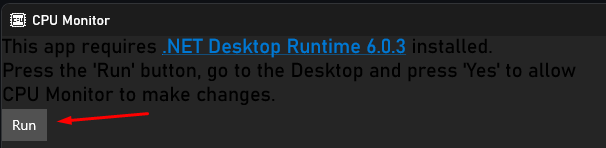
## After opening the widget store scroll down until you find CPU Monitor for Game Bar and Install it.
## Select the CPU Monitor application we installed.
## After selecting CPU Monitor it should appear on your top bar like this.
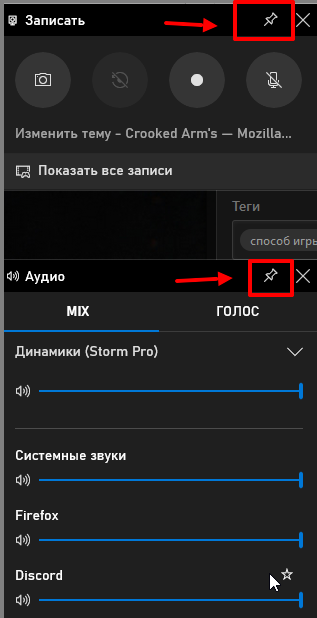
## Stretch the window of CPU Monitor to fill the entire screen and Pin it so the window stays open after you close Xbox Game Bar with Windows + G.
## If you would like to remove the Temperature/Load numbers, click the settings button in the upper right of the CPU Monitor Window.
## Uncheck Temperature and Load to remove numbers on left hand side of CPU Monitor window.
## Disable the following links at top of screen on Xbox Game Bar (the mouse icon should be crossed out).
## **After you have made all the settings for the Xbox bar, let's move on to setting up and launching the software**
### 1) Launch the game, set your resolution and put the game in full screen (windowed full screen, borderless)
### 2) Close the game (restart your PC)
### 3) Launch the software
### 4) Launch the game
### 5) Open Xbox bar (Win + G)
### 6) We turn on our mini program that should be attached
### 7) Close Xbox bar (Win + G)
### 8) Enjoy the game
## **Method 2 xbox bar (Win +G):**
### **Works if you have the xbox bar updated and have the ability to pin.**
### Reference link
1. Inject according to the instructions;
2. We start the game in full screen;
3. Open the xbox panel (Win + G), and fix one of the mini-applications, for example "performance", make it completely transparent, only the percentage of occupied memory remains visible.
## **Method 3:**
1. We inject according to the instructions,
2. Starting the game in full screen
3. Click Win+ H ( to show the menu press Home )
## **Method 3:**
1. \- Launch the game (in windowed mode);
2. \- Launch skype;
3. \- Enable screen display on skype, (screen sharing);
4. \- In the game, enable the mode (in the window to full screen);
5. \- Disable screen display;
## **Method 4 :**
* Windows -> Conferences -> Screen Demonstration
**Method 5 :**
1. Nvidia Experience -> Screen Recording (With Desktop protection disabled)
## **Method 6 :**
HOW TO PLAY FULLSCREEN/FULLSCREEN BORDERLESS VIA OVERWOLF.
You need to download a program called "Overwolf" once directed to this link you need to download the following software, click on "DOWNLOAD OVERWOLF" at the top right of the screen.
### 1) Inject according to the instructions, as usual.
### 2) Make sure Overwolf is running.
### 3) Go into the settings in Overwolf
### 4) Direct yourself to "Overlays & Hotkeys" and make sure the overlay is ENABLED for whatever game you're playing (Some games such as BF2042, aren't added too there list) so therefore the fullscreen/fullscreen borderless may not work then.
### 5) Launch the game, and then you can go from Windowed mode too Fullscreen or Fullscreen borderless.
### 6) After you've enabled the overlay's.. you only need to RUN Overwolf everytime you launch the game or it won't make it go into fullscreen or fullscreen borderless
### **Unfortunately, these methods do not work for everyone**
---
# Agent Instructions: Querying This Documentation
If you need additional information that is not directly available in this page, you can query the documentation dynamically by asking a question.
Perform an HTTP GET request on the current page URL with the `ask` query parameter:
```
GET https://fellas.gitbook.io/fellas-guides/software-guides/arena-breakout-infinite/crooked/fullscreen-fix.md?ask=
```
The question should be specific, self-contained, and written in natural language.
The response will contain a direct answer to the question and relevant excerpts and sources from the documentation.
Use this mechanism when the answer is not explicitly present in the current page, you need clarification or additional context, or you want to retrieve related documentation sections.